Changing a Style Profile, Example
Example: Change a Style Profile for a POS setup
- This example is done in the Demo Data company.
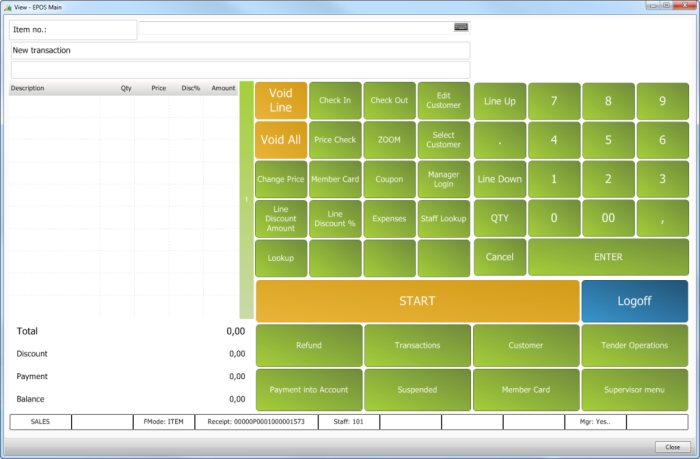
- This is the Hyper POS with the active Style Profile HYPER.
-
- You can do that by changing either the Style Profile for the Terminal or the Style profile for the login staff ID.
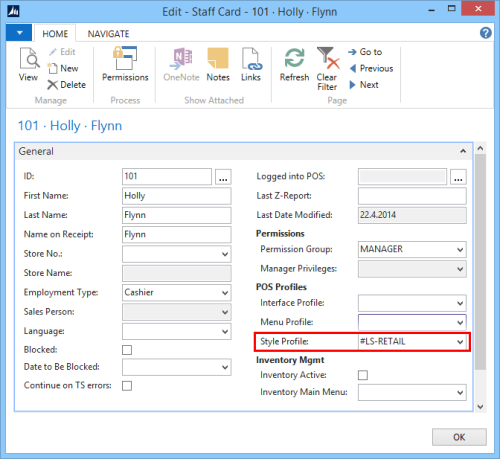
- Restart the POS.
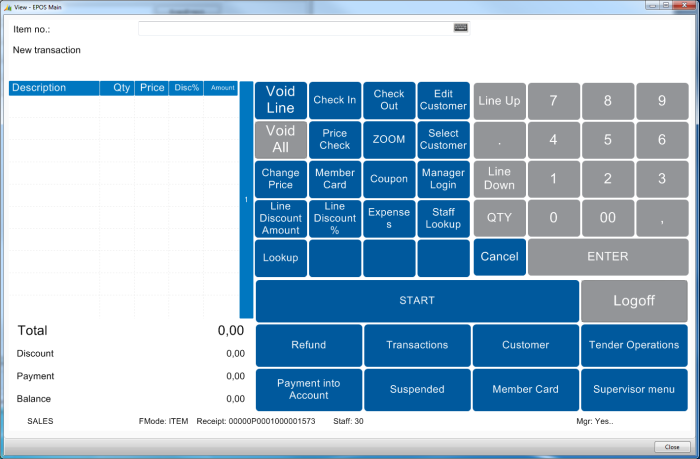
- This is the same POS but now with different colors and fonts as defined in the active Style Profile ##LS_RETAIL.
To see how easy it is to change the look, do the following:
- Copy the Style Profile #HYPER to a new Profile: #Test.
- Change the #TEST Style Profile.
- Change the SKIN shape to Ellipse for all Skin lines.
- Change the Font Name to Showcard Gothic for all Font lines.
- Change the Fore Color to Red number 255 for all Font lines.
- Change the ##DEFAULT Color Setup to grey number 12632256.
- Change the Style Profile for the Terminal to #TEST or for the Staff ID.
- Restart the POS.
The HYPER POS is now like this:
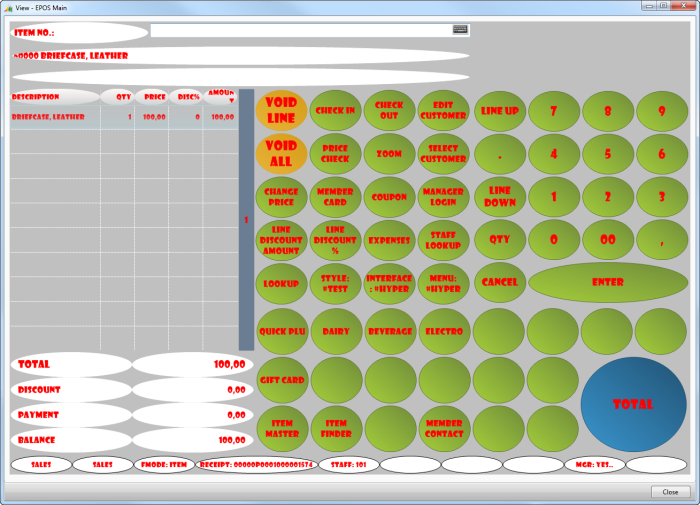
Tip: The above example shows how easy it is to change the look of the POS. The #TEST Style Profile is not an ideal look, but it shows well how easy it is to change the look.